
The Policy Manager is where policies ingested or imported from your Agency Management System are housed and managed.
From the Policy Manager, users can review policy information, make permitted edits, track changes through the policy audit history, and share a policy across multiple insureds using Dynamic Policy Sharing.
Most policies are automatically brought into Certificate Hero from the Agency Management System. If an available policy is not displayed, users can also import it directly from the Policy Manager.
Feature Highlight: Dynamic Policy Sharing
Dynamic Policy Sharing allows one policy to be used across multiple insureds. Updates made to the original policy automatically flow to every insured with which the policy is shared, eliminating the need to maintain separate copies of the same policy.
In This Article
Select a topic below to skip directly to that section:
- View and Manage Policies
- Edit a Policy
- Policy Values From the AMS
- Policy Term Dates and Synchronization
- Policy Audit History
- Dynamic Policy Sharing
- Share a Policy With Other Insureds
- How the Shared Relationship Works
- Changes That Propagate Across Insureds
- Shared Policy Synchronization
- Renewal Behavior
- Cancellation Behavior
- Stop Sharing a Policy
- Import a Policy
View and Manage Policies
Navigate to the Policies Menu to view the policies associated with the selected insured.
The Policies grid displays important policy information, including the policy name, policy number, policy term, insurance company, and current status.
[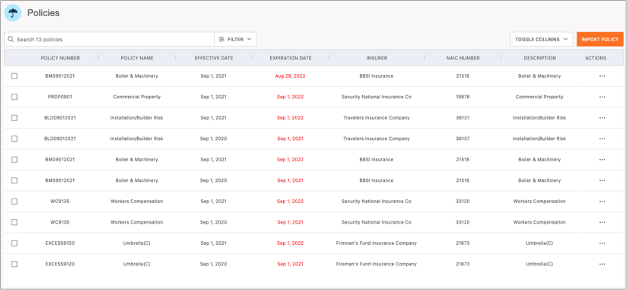
Open the Actions menu beside a policy to access the available management options.

Edit a Policy
From the policy’s Actions menu, select Edit.
The Policy editor allows you to review and update the policy information stored in Certificate Hero.
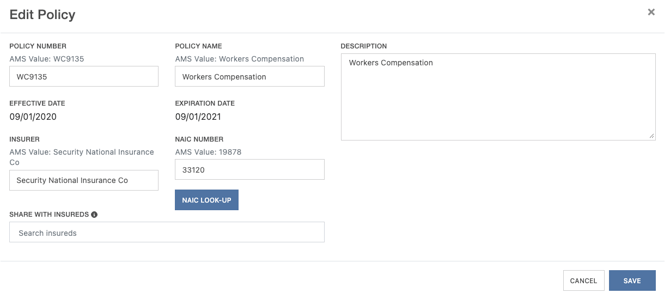
Editable policy fields may include:
- Policy Name
- Policy Number
- Insurance Company
- NAIC
- Description
- Coverages
- Limits
- Other policy-specific information
After making the necessary changes, click Save.
Policy term dates, including the effective and expiration dates, cannot be manually overridden in Certificate Hero. These dates are controlled by the Agency Management System and updated through synchronization.
Policy Values From the AMS
Certificate Hero displays the policy information received from your Agency Management System.
Certificate Hero does not automatically interpret, correct, or replace values received from the AMS.
For example, if a policy is ingested with the policy number listed as TBD, the policy number will display as TBD in Certificate Hero.
Once the correct policy number is available, a user must manually update the policy number through the Policy editor.
To update the policy number:
- Open the policy’s Actions menu.
- Select Edit.
- Replace TBD with the correct policy number.
- Review the remaining policy information.
- Click Save.
Please Note:
Users should review policy information after ingestion and correct any editable placeholder or incomplete values when necessary.
Policy Term Dates and Synchronization
Policy term dates—including the effective and expiration dates—are controlled by the Agency Management System and cannot be manually overridden in Certificate Hero.
When the dates are updated in the AMS, click the Sync button in Certificate Hero to retrieve the updated information.
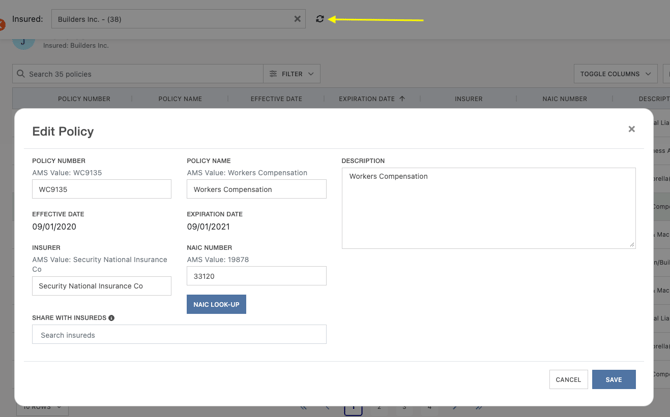
To update policy term dates:
- Update the effective and expiration dates in the Agency Management System.
- Return to the applicable insured in Certificate Hero.
- Click Sync.
- Allow the synchronization to complete.
- Review the policy to confirm the updated dates are displayed.
Please Note:
- Update policy term dates in the Agency Management System first.
- Certificate Hero will display the dates received from the AMS.
- The Sync button does not create a new policy.
- Manually editable policy fields are not a replacement for maintaining accurate policy information in the AMS.
Policy Audit History
Certificate Hero maintains an audit history of changes made to a policy.
The audit history allows users to review:
- What information was changed
- The previous and updated values
- The user who made the change
- The date and time of the change
This provides visibility into policy updates and helps users track changes made after the policy was ingested or imported.
Dynamic Policy Sharing
Dynamic Policy SharingShare one policy across multiple insureds while maintaining one policy record.
Dynamic Policy Sharing is designed for policies, such as Umbrella, Workers’ Compensation, Automobile, or Crime that apply to multiple related insureds.
Instead of creating and maintaining separate copies of the same policy, Certificate Hero allows the original policy to be shared with one or more insureds.
Certificate Hero maintains the relationship between the original policy and every insured with which it is shared.
Why Use Dynamic Policy Sharing?
- Maintain one policy instead of creating multiple copies.
- Keep policy information consistent across insureds.
- Update policy information from the original insured.
- Use the shared policy on certificates, templates, LOB Profiles, endorsements, and bulk jobs.
- Allow AMS updates and cancellations to flow to every connected insured.
Share a Policy With Other Insureds
Navigate to the insured where the original policy is located.
From the Policies Menu, open the policy’s Actions menu and select Edit.
Within the Policy editor, locate the Share With Insureds field.
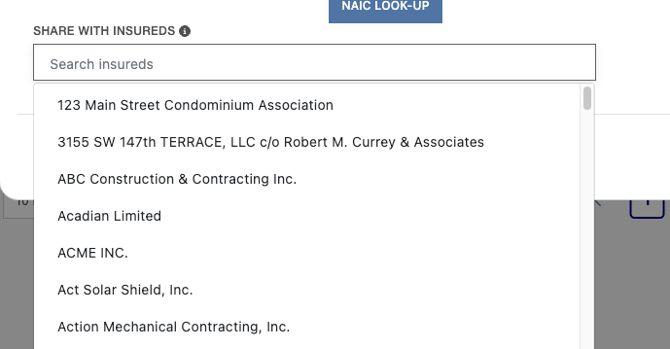
Begin typing the name of the insured with which you want to share the policy.
Select the applicable insured from the dropdown. You may select one or multiple insureds.

To remove an insured before saving, click the X beside its name.
Once all applicable insureds have been selected, click Save.
The shared policy will automatically appear in the Policies Menu for each selected insured.
Please Note:
Policies can initially be shared only with insureds within the same division.
How the Shared Relationship Works
Certificate Hero does not create a separate copy of the policy for every insured. The selected insureds are connected to the same policy record.
Policies are not automatically shared simply because two records contain similar information. The sharing relationship is created when a user selects the receiving insureds through the Share With Insureds field.
Because the insureds are connected to the same policy record, the following information will match everywhere the policy is shared:
- Policy Name
- Policy Number
- Effective and Expiration Dates
- Insurance Company
- NAIC
- Description
- Coverages
- Limits
Original and Receiving Insureds
The insured where the policy originated controls the shared policy.
Users working within the original insured can:
- Edit the policy
- Select the insureds with which the policy is shared
- Remove insureds from the sharing relationship
- Manage changes to the shared policy
The policy is read-only when viewed from a receiving insured.
Users working within a receiving insured can use the policy on that insured’s certificates, templates, LOB Profiles, endorsements, and bulk processing workflows, but they cannot edit the shared policy record.
Please Note:
To make a change that should appear across all connected insureds, edit the policy from the original insured within your agency management system.
Changes That Propagate Across Insureds
Changes made to the original policy automatically appear in every insured with which the policy is shared.
This includes changes to:
- Policy Name
- Policy Number
- Insurance Company
- NAIC
- Description
- Coverages
- Limits
Policy term dates will update across all connected insureds when the original policy receives the updated dates from the Agency Management System through synchronization.
Changing the policy number from the original insured does not break the sharing relationship. The updated policy number will appear everywhere the policy is shared.
LOB Profiles and Shared Policies
A shared policy can be used to create an LOB Profile within each receiving insured.
LOB Profiles remain specific to the insured where they were created. Sharing a policy does not automatically copy or share an existing LOB Profile.
Shared policies can be used within:
- The LOB Profiles Manager
- The Certificate Editor
- The COI Template Editor
- Bulk Job processing
- Endorsements
Shared Policy Synchronization
The original Agency Management System policy remains the source of the synchronized policy information.
When the scheduled policy synchronization updates the original policy, the updated information flows to every insured using that shared policy.
If a policy sync is initiated from an insured receiving the shared policy, Certificate Hero will also check the policy connected to that insured.
Important:
Because each insured is connected to the same policy record, an AMS update to the original policy affects every insured using the shared policy.
Renewal Behavior
Certificates remain specific to the insured where they were created. Sharing a policy does not combine certificate records or renewal jobs.
Certificates must be renewed separately within each insured.
Renewing certificates within one insured does not automatically renew certificates within the other insureds using the shared policy.
When the original shared policy is mapped to its new policy term during renewal, the new-term policy is made available to the appropriate receiving insureds.
Before processing a renewal from a receiving insured, confirm that the new-term policy has been shared by the original insured.
If the new-term policy is not available, return to the original insured and confirm that it is being shared with the appropriate insureds.
Cancellation Behavior
If the original policy is cancelled in the Agency Management System, the cancellation affects every insured using the shared policy.
Cancelled policies are filtered out of Certificate Hero during policy synchronization. Because the insureds are connected to the same policy record, the cancelled policy will no longer remain available as an active policy within the connected insureds.
Important:
Do not cancel a shared policy unless the cancellation applies to every insured using that policy.
Stop Sharing a Policy
Only a user working within the original insured can remove an insured from the sharing relationship.
To stop sharing a policy:
- Navigate to the original insured.
- Open the Policies Menu.
- Open the policy’s Actions menu and select Edit.
- Locate the Share With Insureds field.
- Click the X beside the insured you want to remove.
- Click Save.
Once removed, the policy will no longer appear in that insured’s Policies Menu.
When a Sharing Relationship Cannot Be Removed
Certificate Hero will prevent an insured from being removed when an LOB Profile has already been created from the shared policy within that insured.
This protects certificates, templates, endorsements, and other records that may depend on the shared policy.
Review and resolve any dependent LOB Profiles before attempting to remove the insured from the sharing relationship.
Please Note:
- Editing the policy number from the original insured does not break the sharing relationship.
- A receiving insured cannot edit or independently change the shared policy.
- Cancelling the policy in the AMS is not the same as unsharing it. Cancellation affects all connected insureds.
- Removing an insured from Share With Insureds ends that insured’s access without deleting the original policy.
Import a Policy
Import a policy when it is available from the AMS but not currently displayed in the Policies Menu.
Most policies are automatically brought into Certificate Hero through ingestion or synchronization. The Import Policyfeature can be used when an available policy has not yet been added to the selected insured.
From the Policies Menu, click Import Policy.
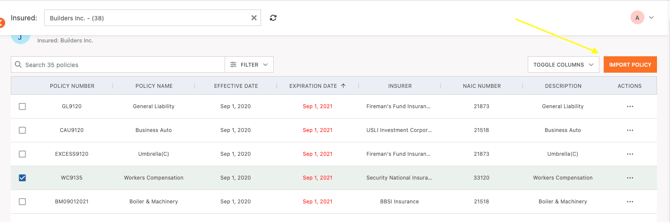
All policies available for import will display in a list.
Locate the policy you want to import. Open its Actions menu and select Import.
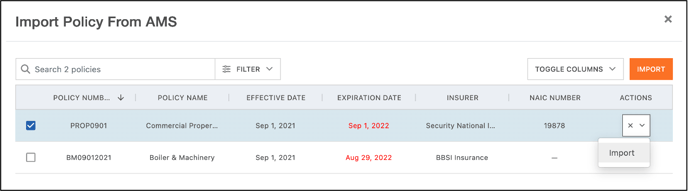
Review the policy information. In some cases, you may need to enter the NAIC using the NAIC Look-Up button.
When you are ready to proceed, click Import.
The policy will appear in the insured’s Policies Menu, where it can be reviewed and edited.
Please Note:
Importing a policy does not correct or replace information received from the Agency Management System. Review the imported policy and manually update any editable fields, such as a policy number displaying as TBD when necessary.
Policy term dates must be updated in the AMS and retrieved through synchronization.