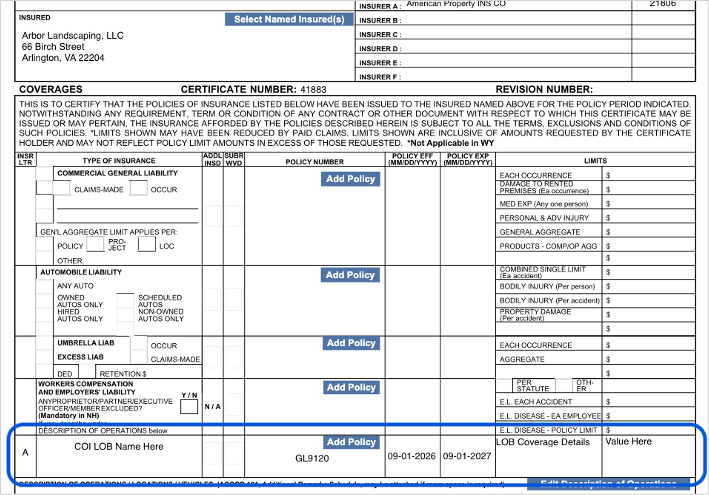
Creating the LOB Profile
Begin within the LOB Profiles manager.
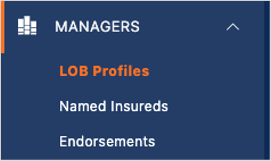
Click to create a new LOB Profile.

If the line of business is mapping into Certificate Hero as General Liability, this is not a problem! Remove any General Liability values that might exist - including unchecking any General Liability related boxes.
Continue by adding the coverage details needing to be reference on the COI, as shown below.
If additional coverage lines are needed, click “Add Overflow Coverage” for additional fields.
Adding the LOB to the Certificate
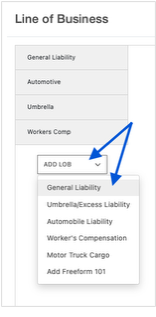
After saving the LOB Profile, when adding to the certificate, select the “Add LOB” dropdown and select General Liability.
Then select the LOB Profile you created.
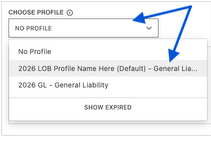
Once selected, you will be able to see the details of the coverage, as shown below.
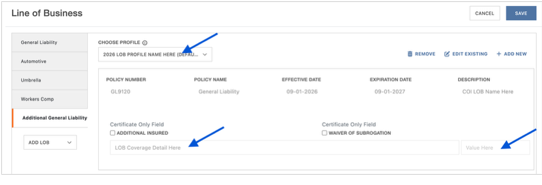
After saving the LOB to the certificate, the LOB Profile should display on the COI in the other section under Workers Compensation.