![61a69bd62207876ebe6cd252_chero-logo-with-r (1).png]](https://support.certificatehero.com/hs-fs/hubfs/61a69bd62207876ebe6cd252_chero-logo-with-r%20(1).png?height=40&name=61a69bd62207876ebe6cd252_chero-logo-with-r%20(1).png)
When to Use One Bulk Revision
Let’s say you have 169 certificates that require updates, and the changes include:
- Updating agency signature or agency contact
- Adding a line of business
- Updating Named Insured on 100 of the 169
- Updating or replacing endorsements on 28 of the 169
You might think you need three separate bulk jobs. Instead, you can complete all edits using a single bulk revision by narrowing your selections within that job as you go.
Step-by-Step Workflow
- Start a Bulk Revision
- Navigate to Certificates → Bulk Jobs in the left menu.
- Click + Create Bulk Job.
- Select Revision
- Name your revision, select any applicable fields and then click Create .
You now have one bulk revision that includes all certificates requiring edits.
Apply Changes That Affect All Certificates
-
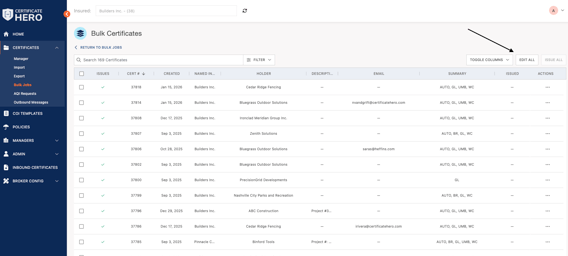
With all 169 certificates selected, click Edit All.
-
Make the updates that apply to every certificate:
-
Agency signature
-
Agency contact
-
Line of business additions
-
-
Click Complete Bulk Edit, then Save Edits.
At this point, the changes common to all 169 certificates are complete.
Update the Named Insured on a Subset of Certificates
Now that the base updates are done:
- Return to the Bulk Certificates grid.
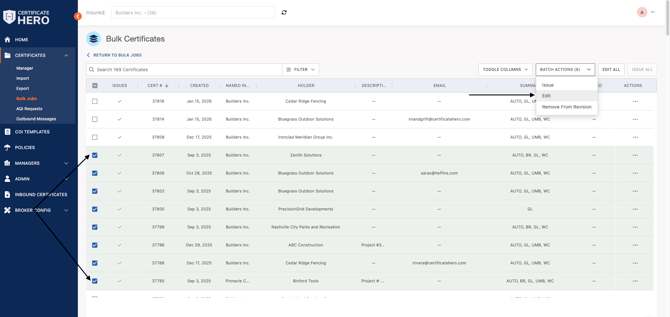
- Use the search bar and filters to find the certificates that need the Named Insured update.
- Use the checkboxes to select the certificates you want.
- Select Batch Actions → Edit to update the Named Insured.
- Click Save Edits, then Complete Bulk Edit.
Using the search and row selection tools helps you target the correct certificates without creating a new revision.
Update or Replace Endorsements
Next:
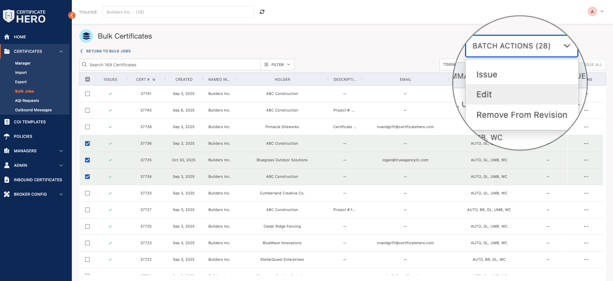
- Back in the Bulk Certificates grid, search and filter to locate the 28 certificates that need endorsement updates.
- Select those certificates using the checkboxes.
- Choose Batch Actions → Edit and make the required endorsement changes.
- Click Save Edits, then Complete Bulk Edit.
You have now applied varying changes to different subsets of certificates all within the same revision job.
Final Step: Issue the Revised Certificates
Once all edits are complete for the entire set of certificates:
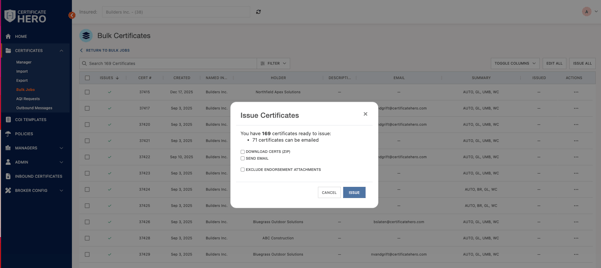
From the bulk job screen, click Issue All in the upper right.Confirm the issuance options and proceed.
Your certificates will be issued with all updates included.
Why This Workflow Is Better
Many users create multiple bulk revisions for the same group of certificates simply because they have different kinds of edits to apply. However:
One bulk revision job can handle multiple rounds of changes as long as the certificates are included in the original job.
You can narrow your selections inside the job using search, filters, and batch edits.
This keeps your process organized and reduces clutter in the Bulk Jobs list.
Even if additional edits are still coming later, you can leave the revision pending, return, make your changes, and issue when ready.
Summary
Start one bulk revision for all relevant certificates.
Apply edits common to all certificates first.
Use search, filters, and batch edits to make additional changes to subsets.
Issue all certificates once all edits are complete.
This approach saves time, reduces confusion, and keeps your revision jobs clean and organized.