
This is helpful in cases where small variations in naming or address formatting create multiple records for what should really be a single entry.
To download a step-by-step PDF Walkthrough, click HERE.
OR
See below for a full video walkthrough:
Holder Merge Flow
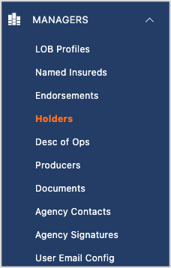
Within the left-hand navigation menu, select “Holders” from the “Managers” dropdown.
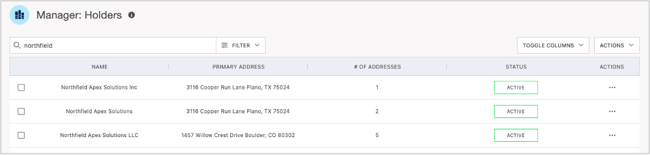
This will take you to the Holders Manager, where you can scroll through the list, or search for the Holder(s) you would like to merge.
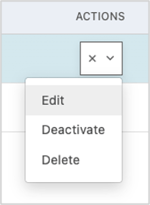
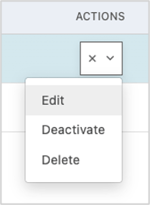
Within the “Actions” menu for any one of the selections, select to “Edit” the entry.
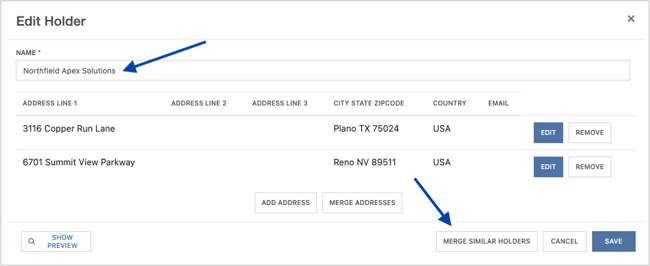
At the top of the “Edit Holder” screen you can confirm the entry you are in.
When you are ready to combine similar Holder entries, select “Merge Similar Holders”.
Within the Holder Merge menu, on the left you can see a list of similar holder entities available to merge into a single Holder entry.
On the right you will see a list of Holder entries you can select to merge these into.
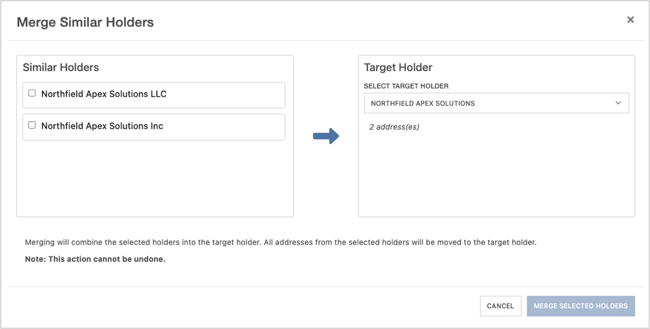
Select any holder records on the left you wish to merge into a single entry – this will also merge in their addresses.
Then choose the primary holder on the right to merge these selections into.
When you are ready to complete the Holder merge, click “Merge Selected Holders”.
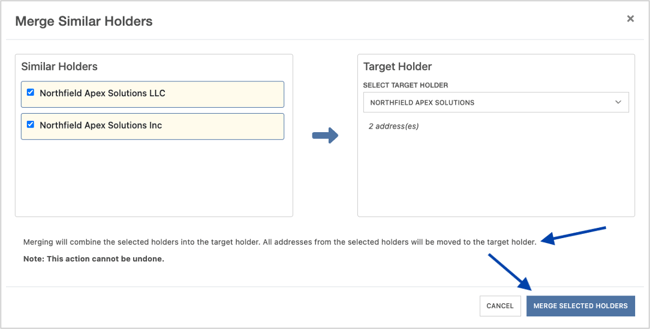
You will be brought back to your Holder Manager where you will now see all selected holders – along with their associated addresses – consolidated into a single holder record.

Holder Address Merge Flow
In addition to merging holder records, Holder Clean-Up also allows you to merge duplicate addresses.
Within the “Actions” menu for any one of our selections, select to “Edit” the entry.
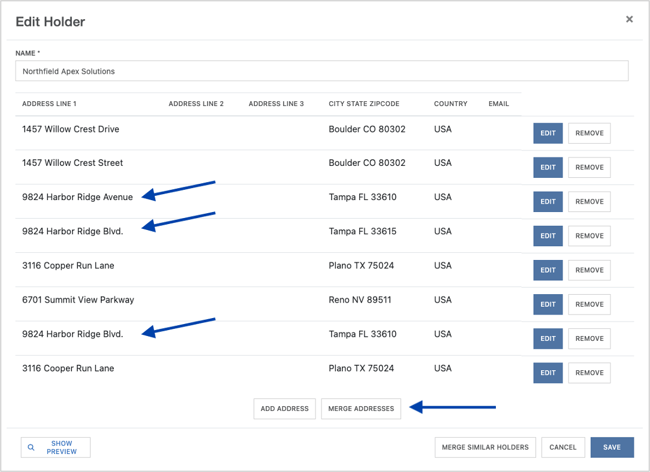
Within the “Edit Holder” screen you can see a list of the addresses available for use on a certificate.
In this example you can see variations of the same address for 9824 Harbor Ridge.
To merge these similar entries into one, you will start the merge process by clicking “Merge Addresses”.
Within the left-hand list of addresses, you will see a list of all similar entries to merge.
On the right, you see the fields indicating the address fields the selected addresses will merge into.
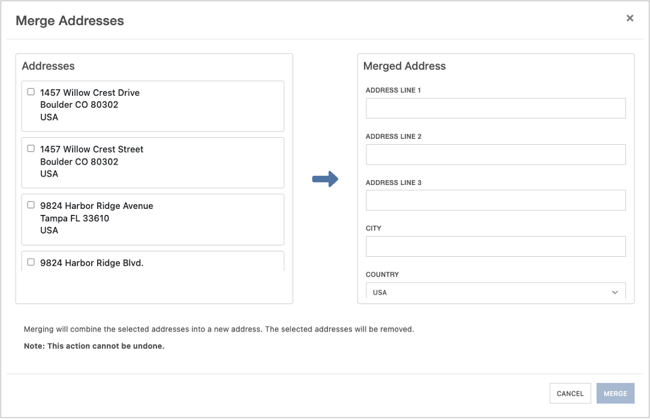
Select the addresses you would like to merge into one entry.
On the right, confirm the address information the selected entries will merge into.
When you are ready to complete the address merge, click “Merge”.
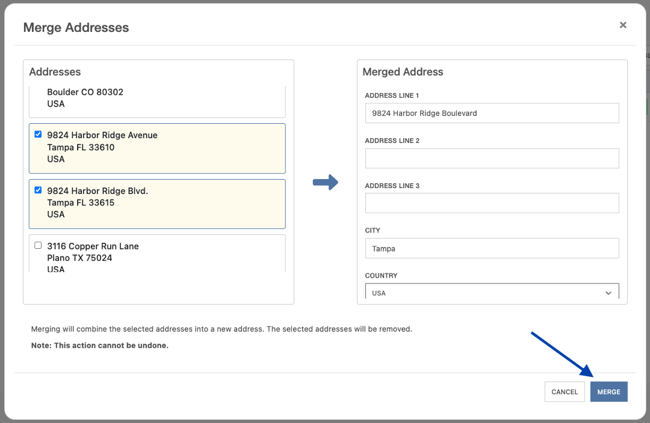
You will be brought back to the editor where you can now see the single address entry for 9824 Harbor Ridge Boulevard.
When you are ready to save the changes to the Holder, click “Save”.
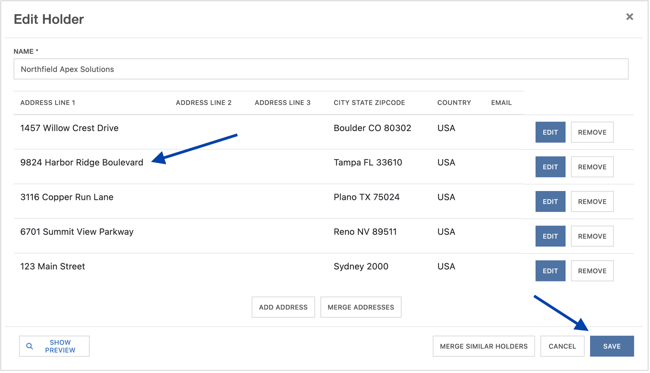
This will bring you back to the Holder Manager – where you will see the single Holder entry, with the updated combined address count.
